By Liam Prescott
USB-C Power Delivery (PD) lets you charge a laptop from a portable power station or power bank using a single USB-C cable, often more efficiently than plugging the laptop’s AC adapter into an inverter. This guide explains how USB-C PD negotiates power, what to look for in ports and cables, and how to set up a reliable charging station for your laptop while camping.
What you need
To charge a laptop via USB-C PD at camp, you need three things: a power source that can deliver enough wattage via USB-C, a cable that supports the required power level, and a laptop with a USB-C PD input (some laptops charge only through a dedicated barrel connector, so check your model).
Power source options
- Portable power station with a USB-C PD port. Many modern power stations include one or more USB-C ports that can output 60 W, 100 W, or even higher. The wattage is usually listed on the port label or in the spec sheet.
- High-wattage USB-C power bank. A dedicated power bank designed for laptops can deliver 60 W to 100 W. Look for a model that explicitly states it supports USB-C PD for laptops. a high-wattage USB-C power bank is a compact option when you do not need a full power station.
- AC inverter in a power station. You can always plug the laptop’s original AC charger into a power station’s AC outlet. However, this route is less efficient because the power station must convert DC battery power to AC (inverter loss), and then the laptop charger converts AC back to DC. USB-C PD skips that double conversion.
Cable requirements
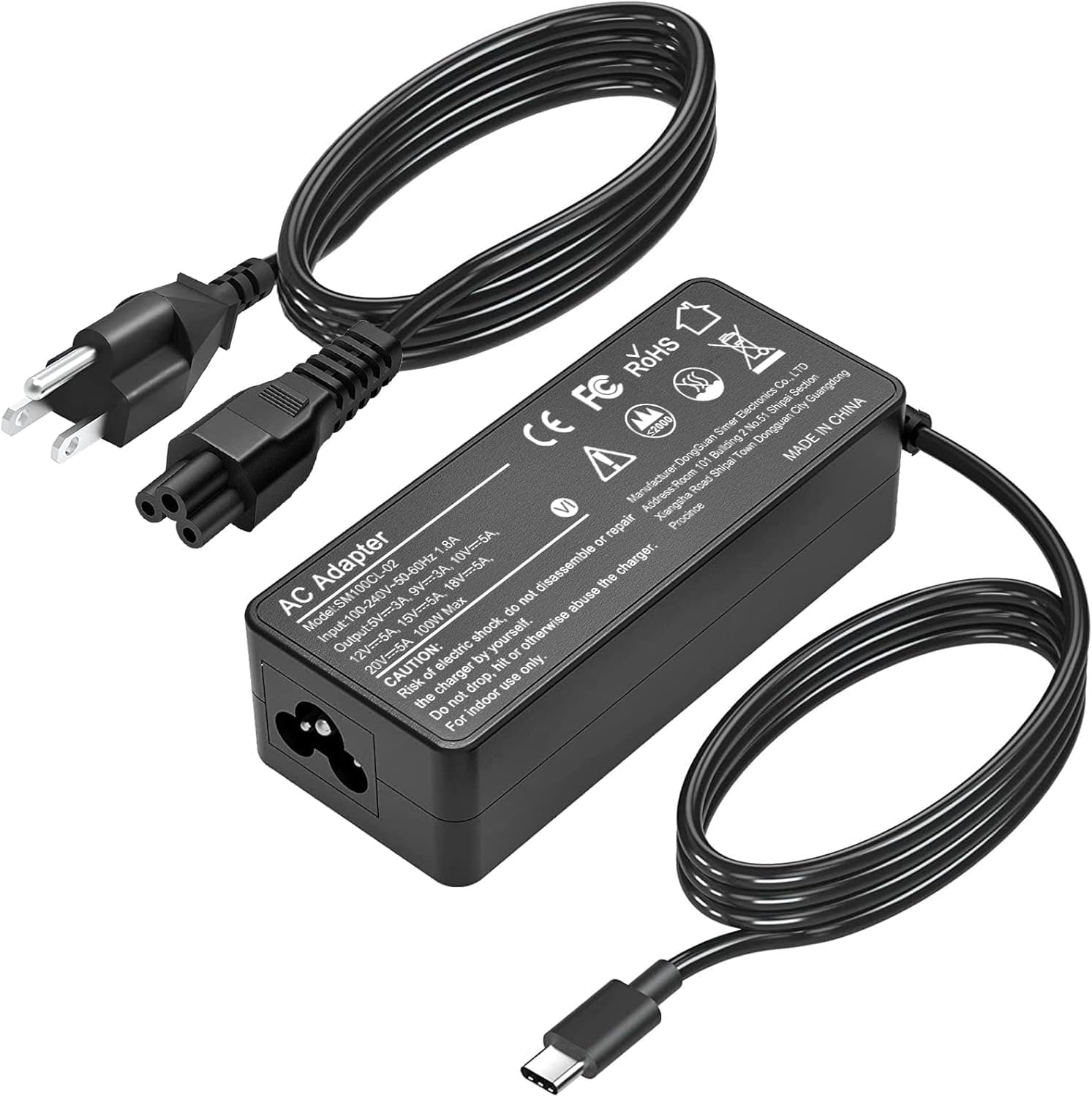
Not all USB-C cables can carry the higher wattages needed for laptop charging. For power above 60 W (the standard limit for basic USB-C cables), you need a cable that is rated for the wattage you plan to use. These cables are often called “e-marked” because they contain an electronic marker chip that tells the power source and the laptop what the cable can handle. A cable rated for 100 W (20 V at 5 A) is the most common high-power option. a 100W USB-C cable will work for most laptops that charge at up to 100 W. If your laptop requires more than 100 W (some gaming laptops do), you may need a proprietary charger or a newer USB-C standard; check your laptop’s specifications.
Laptop compatibility
Most recent ultrabooks, thin-and-light laptops, and many business laptops accept USB-C PD. Look for a USB-C port on the laptop marked with a charging or power icon, or check the manual to see which ports accept power. Some laptops charge only through a specific USB-C port, so consult the manual. If your laptop does not support USB-C charging, you will need to use the AC adapter and a power station’s inverter.
How USB-C Power Delivery negotiates
USB-C PD uses a communication protocol between the power source (power station or power bank) and the device (laptop). When you plug in the cable, the source and laptop exchange data to agree on a voltage and current. Common voltage steps are 5 V, 9 V, 15 V, and 20 V. The laptop requests the highest voltage it can accept, and the source supplies that voltage up to its rated current. For example, a laptop that needs 60 W might request 20 V at 3 A. If the source can only deliver 20 V at 2.25 A (45 W), the negotiation may fall back to a lower power level, or the laptop may not charge at all if the minimum is not met. Always match or exceed the laptop’s required wattage for reliable charging.
Step-by-step instructions for charging at camp
1. Check your laptop’s power requirements
Look at the original AC charger that came with your laptop. It will list an output voltage and current, for example “20 V ⎓ 3.25 A” (65 W). That is the wattage the laptop expects. If you cannot find the charger, check the laptop’s technical specifications online or in the manual. Note the wattage and the maximum voltage (usually 15 V or 20 V for PD).
2. Choose a power source with enough USB-C output
Select a power station or power bank whose USB-C port can deliver at least the wattage your laptop needs. If your laptop requires 65 W, a power station with a 60 W USB-C port may charge slowly or not at all; aim for a port rated at 65 W or higher. Many power stations offer 100 W USB-C ports, which will handle most laptops comfortably. If the power station lists a maximum total USB output, ensure the individual port can meet the laptop’s demand.
3. Use a suitable cable
Connect the laptop to the power source using a USB-C cable rated for the wattage you are using. For 60 W and above, use an e-marked cable rated for at least that wattage. A 100 W cable is a safe choice for most laptops. Avoid using a cheap phone charging cable; it may overheat or fail to negotiate the higher power profile.
4. Plug in and verify charging
Connect the cable to the laptop and the power source. The laptop should begin charging. Some laptops show a charging indicator on the screen or near the port. If nothing happens, try a different USB-C port on the power source (some ports may be data-only or lower power). Also try a different cable to rule out a faulty cable.
5. Monitor power consumption (optional)
If your power station has a display showing output wattage, you can see how much power the laptop is drawing. This helps you estimate how long the power station will last. For example, a laptop drawing 45 W while running will consume more energy than when it is asleep. You can also use a USB-C power meter inline to see the negotiated voltage and current.
Efficiency: USB-C PD vs. AC inverter
Charging a laptop via USB-C PD from a power station’s USB-C port is generally more efficient than using the AC inverter. Here is why:
- Inverter loss: A power station’s inverter converts DC battery power to AC with an efficiency of around 85–90 %. That means 10–15 % of the energy is lost as heat before the AC power even reaches your laptop charger.
- Charger conversion loss: The laptop’s AC adapter then converts AC back to DC, losing another 5–10 %.
- USB-C PD: The power station’s USB-C port delivers DC power directly, with only one conversion step inside the power station (battery voltage to USB-C PD voltage). That conversion is typically 90–95 % efficient. The laptop then uses its internal PD circuitry, which is also very efficient.
In practice, you can often save a noticeable share of energy by using USB-C PD instead of the inverter, though the gain depends on the equipment. That means more laptop charges from the same power station capacity. For campers who rely on solar charging or limited battery reserves, this efficiency gain matters.
Worked example: laptop charging energy
Suppose you have a laptop whose battery holds 50 Wh (a typical ultrabook). You want to fully charge it from a power station. The laptop’s charger is a 65 W AC adapter. Using the AC inverter route, the power station must supply about 65 W to the inverter. With 88 % inverter efficiency, the power station draws roughly 74 W from its battery. Over one hour of charging, that consumes about 74 Wh from the power station. The laptop battery receives 50 Wh, so the overall efficiency is 50/74 ≈ 68 %.
Now using USB-C PD: the power station’s USB-C port delivers 65 W directly to the laptop. The conversion inside the power station is about 93 % efficient, so it draws roughly 70 W from the battery. Over one hour, that is 70 Wh consumed. The laptop receives 50 Wh, for an efficiency of 50/70 ≈ 71 % — a small gain. But if the laptop draws less than the port’s maximum (e.g., 45 W when idle), the USB-C conversion efficiency may be similar, while the inverter’s fixed overhead becomes a larger percentage of the total draw. In low-power scenarios, USB-C PD can be significantly more efficient.
Note: These numbers are examples. Actual efficiency depends on the specific power station, laptop, cable, and charging state. Use them as a rule of thumb.
Common mistakes
Using a low-wattage cable
A cable not rated for the power level may cause slow charging, intermittent connection, or overheating. Always use a cable that is rated for at least the wattage your laptop needs. For laptops requiring 60 W or more, an e-marked cable is essential.
Plugging into a low-power USB-C port
Many power stations have multiple USB-C ports, but not all are high-power PD ports. Some may be limited to 15 W or 18 W for phones. Check the port label or manual to identify which port(s) support laptop charging. Using a low-power port will either charge the laptop very slowly or not at all.
Assuming all USB-C PD is the same
USB-C PD is a standard, but not every device implements every profile. Some laptops require a specific voltage (e.g., 20 V) and will not charge at 15 V even if the wattage is similar. Check that your power source can deliver the required voltage. Most high-wattage power banks and power stations support 20 V, but older ones may max out at 15 V.
Forgetting to check the laptop’s input port
Some laptops have multiple USB-C ports, but only one supports PD input. Plugging into a data-only port will not charge the laptop. Look for the port marked with a battery icon or “PD”.
Troubleshooting
Laptop not charging
- Check that the cable is fully inserted at both ends.
- Try a different USB-C port on the power source.
- Use a different e-marked cable rated for the required wattage.
- Restart the power source (turn it off and on).
- Ensure the laptop is not in a deep discharge state; some laptops require a minimum charge before they accept PD input. If the battery is completely dead, try a different charging method first.
- Consult the laptop manual to confirm which port supports PD input and whether any settings (e.g., BIOS) need to be enabled.
Slow charging
- The power source may not be delivering enough wattage. Check the port rating and compare to your laptop’s requirement.
- The cable may be limiting power. Replace with a higher-rated cable.
- The laptop may be running high-power tasks (e.g., gaming) while charging, reducing the net charge rate. Put the laptop to sleep or turn it off for faster charging.
- Some laptops limit charging speed when using a third-party power source. This is a safety feature; charging may still complete, just slower.
Power source shuts off or stops charging
- The power source may have a low-battery protection feature. Recharge the power station or power bank.
- Overheating can cause the power source to reduce output or shut down. Move it to a cooler location.
- The laptop may be drawing more than the port’s continuous rating. Some power sources have a surge limit. Try a different port or use the AC inverter as a fallback.
FAQ
Can I charge my laptop from a power bank while the power bank itself is charging?
Some power banks support pass-through charging, but many do not. Check the power bank’s manual. If pass-through is not supported, the power bank may stop output while being charged, or it may charge and discharge simultaneously, which can reduce battery lifespan. It is generally safer to charge the power bank first, then use it to charge the laptop.
Is it safe to leave my laptop plugged into a power station overnight?
Yes, most modern laptops and power stations have overcharge protection. The laptop will stop drawing power once its battery is full. However, leaving the laptop connected continuously may keep the battery at 100 %, which can slightly reduce long-term battery health. For camping trips, this is usually not a concern. Follow the manufacturer’s guidelines for battery care.
What if my laptop needs more than 100 W?
Some gaming laptops and workstations require 130 W, 180 W, or more. Standard USB-C PD tops out at 100 W (20 V at 5 A); the newer Extended Power Range allows up to 240 W, but only when the laptop, power source and cable all support it. If your laptop needs more than 100 W, you will likely need to use its original AC charger with a power station’s AC inverter. Check if your laptop supports USB-C PD at a lower wattage for slow charging; some laptops can trickle charge at 60 W even if the AC adapter is larger.
Can I use a USB-C hub or extension cable?
Using a hub or extension cable adds resistance and can cause voltage drop, potentially reducing charging speed or causing negotiation failures. For best results, connect the laptop directly to the power source with a single high-quality cable. If you must use a hub, choose one that explicitly supports PD pass-through at the required wattage.
Final tips
Charging a laptop via USB-C PD at camp is straightforward once you match the wattage, use an e-marked cable, and choose the right port. The efficiency advantage over an AC inverter is real, especially when your power station’s battery is limited. For more on USB-C power basics, see our detailed guide to USB-C PD. To understand how much power other USB camping devices use, read How Much Power Do USB Camping Devices Use?. And for a broader overview of USB charging options, visit USB & USB-C Power at Camp. With the right setup, you can keep your laptop running for navigation, entertainment, or work without draining your power station unnecessarily.

About Liam Prescott
Liam puts together our off-grid power for camping, rv & vanlife guides, digging through specifications, manufacturer details and owner reviews so you don't have to.